
Gamepad Tester – Test PS5, PS4, PS3 & Xbox Controllers Tester Reviews

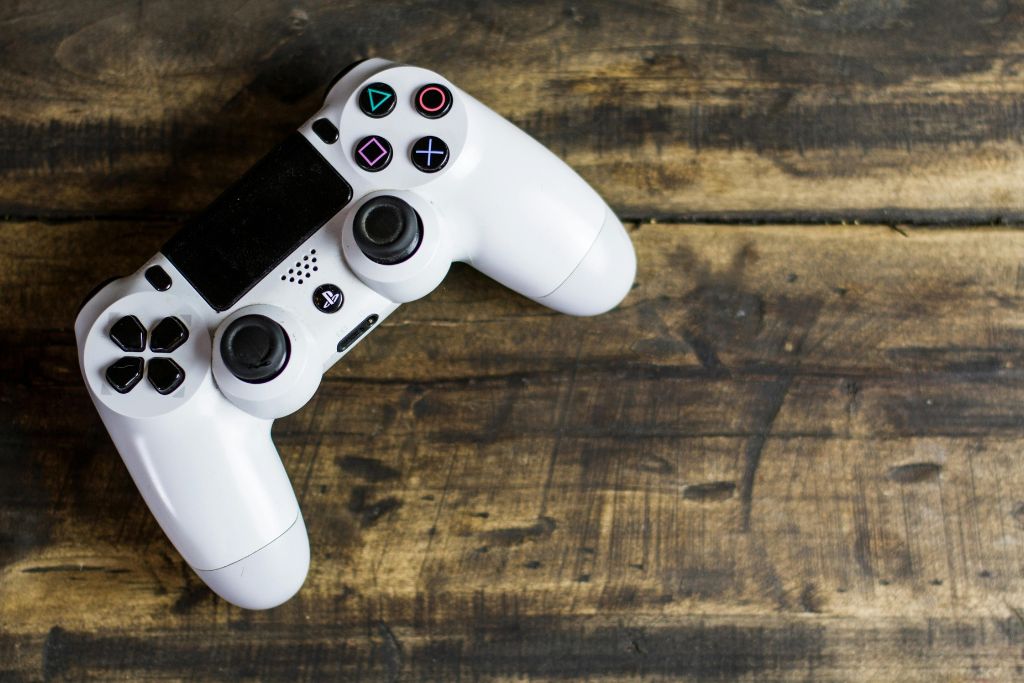
When it comes to gaming, one of the most important factors in ensuring a smooth and enjoyable experience is the functionality of your gamepad or controller. Whether you’re using a PS5, PS4, PS3, or Xbox controller, it’s essential to make sure your device is working properly. That’s where gamepad testers come into play. These tools are designed to help you test the buttons, triggers, joysticks, and other features of your gaming controller, making sure everything is functioning correctly before you jump into your next gaming session. This guide will cover everything you need to know about gamepad testers, focusing on how to test controllers for PS5, PS4, PS3, and Xbox.
Gamepad Tester

Gamepad Tester is the most reliable way to find out if you are losing games because of your skill or your hardware. It is transparent, fast, and free.
Pro Tip: If you see a small amount of drift (under 0.05), you don’t need a new controller. Most modern games like Apex Legends or Call of Duty have a “Deadzone” setting in the menu. Just set your in-game deadzone slightly higher than the drift value you saw on the website, and the drifting will stop in-game.
Why Gamepad Testing is Essential
Gamepad testing is an often overlooked but critical part of maintaining your gaming equipment. The last thing any gamer wants is to find out that their controller is malfunctioning during a high-stakes game. Testing your controller can help prevent these frustrations by identifying potential problems early. Here are some key reasons why gamepad testing matters:
- Improved Gameplay: A properly functioning controller ensures that your gameplay experience is smooth, responsive, and free from technical issues.
- Prevent Wear and Tear: Regular testing can help you identify wear and tear before it becomes a serious issue, allowing for repairs or replacements before it disrupts your gaming experience.
- Ensure Full Functionality: Testing ensures all the buttons, triggers, and joysticks are working as intended. Malfunctioning buttons can impact gameplay and immersion.
- Longer Lifespan: By identifying issues early and addressing them promptly, you can prolong the lifespan of your controller.
What is Gamepad Tester?
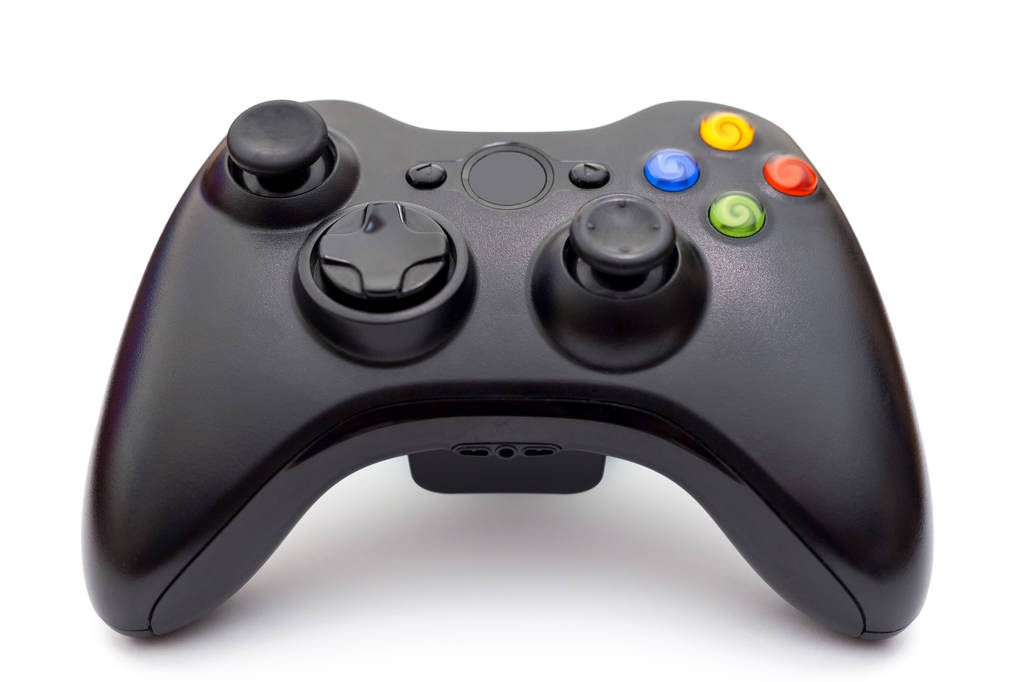
Gamepad Tester is a web-based tool that talks directly to your controller through your browser. You don’t need to download an app or install drivers. It simply listens to the signals your controller sends and maps them out visually on your screen.
Is Your Controller Broken? How to Use a Gamepad Tester to Fix It
If you have ever felt like your character in Call of Duty is moving on their own, or your car in Forza is pulling to the left, you are probably dealing with stick drift. Before you throw your $70 controller in the trash, you need to know exactly what is wrong with it.
Gamepad Tester is the industry-standard tool for this. It is a simple website that shows you every tiny movement your controller makes. Here is how to use it to save your gear and your sanity.
Why you should test your controller
Controllers are built with “potentiometers” (small sensors under the sticks). These sensors wear out over time due to friction and dust. Testing is vital because: Testing your controller not only prevents hardware issues like stick drift and ghosting but also supports smoother gameplay, which can help you improve reaction times in competitive gaming
- Stick Drift: It identifies if your analog sticks are leaking movement signals.
- Button Deadness: It shows if a button requires a “hard press” to register.
- New Purchases: It helps you verify if a brand-new controller has a factory defect before the return window closes.
Devices you can test
This tool works with almost everything that has a USB or Bluetooth connection:
- PlayStation: PS5 DualSense, PS4 DualShock, and PS3.
- Xbox: Series X, Series S, Xbox One, and 360.
- Nintendo: Switch Pro Controllers and Joy-Cons.
- Generic: Third-party PC pads and even retro arcade sticks.
2. Advantages of Gamepad Tester
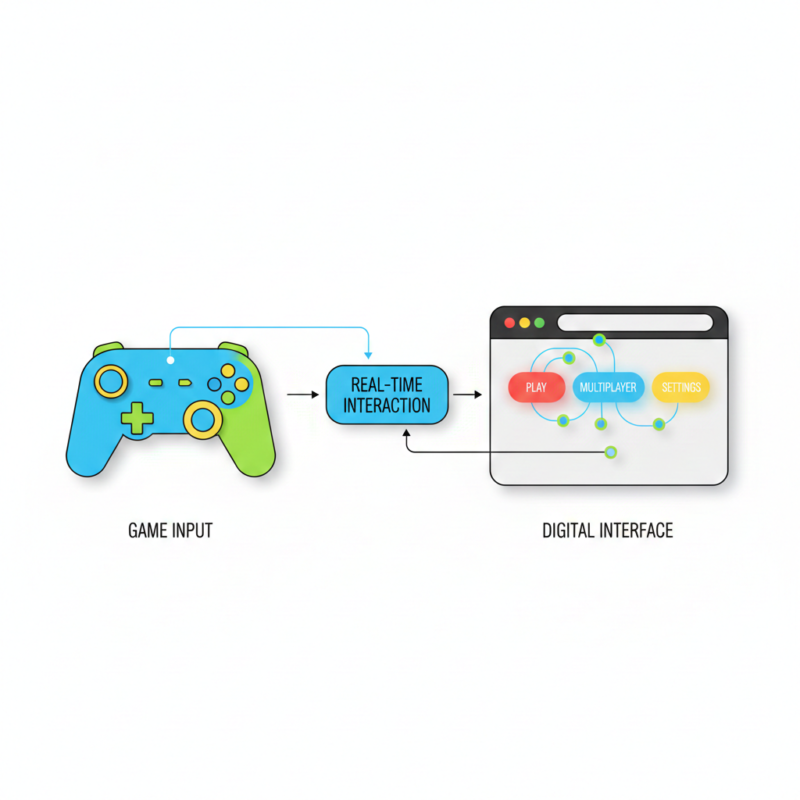
Real-time Input Mapping
When you press a button, it lights up on the screen instantly. This is great for finding “sticky” buttons that stay active even after you let go.
Stick Drift and Dead Zone Detection
This is the most popular feature. It gives you a “circularity error” percentage. If your stick is supposed to be at 0,0 (center) but the website shows it at 0.05,0.02, you have drift.
Vibration and Rumble Motor Check
You can trigger the motors individually. I once used this to find out that only the left motor in my PS4 controller was working, which made the haptic feedback feel “lopsided” during gameplay.
Polling Rate and Input Latency
For competitive gamers, every millisecond counts. The tool shows how many times per second your controller sends an update to the PC. Higher is usually better for a “snappy” feel.
3. Step-by-Step Testing for Specific Controllers
Different brands have different quirks. Here is what to look for:
Testing PS5 DualSense
The DualSense has very sensitive triggers.
- The Test: Gently pull L2 and R2. The value should climb smoothly from 0.00 to 1.00. If it jumps from 0.2 to 0.8 instantly, your trigger spring or sensor is failing.
- Touchpad: Make sure the “B13” button registers when you click the center pad.
Testing PS4 DualShock
PS4 controllers are famous for “ghosting” on the D-pad.
- The Test: Press the Up arrow. If the Left or Right arrow flickers on the screen at the same time, the internal conductive film is likely dirty or worn.
Testing Xbox Controllers
Xbox pads use “X-Input,” which is very stable on Windows.
- The Test: Check the “Thumbstick Circularity.” Xbox sticks often have a slightly higher error rate than PS5 sticks, but as long as it returns to the center dot, you are fine.
Testing PS3 and Legacy Controllers
Older controllers might need a program like DS4Windows or ScpToolkit to show up in the browser. Once they do, check the “Axis” values carefully. Older sensors tend to “jitter” (jump around) even when the stick is still.
4. How to Use Gamepad Tester (Method)
Follow these simple steps to get an accurate reading:
- Plug it in: Connect via a high-quality USB cable. While Bluetooth works, a cable removes “wireless interference” as a possible cause for lag.
- Open the Site: Go to
gamepad-tester.comin Google Chrome or Microsoft Edge. (Firefox sometimes struggles with controller API). - The “Wake Up” Call: The screen will stay blank until you press a button. Give any button a firm press to start the detection.
- Read the Data: * B0 to B15: These are your buttons.
- Axis 0 to Axis 3: These are your left and right sticks.
5. Common Issues You Can Spot
| Issue | What it looks like on screen | The Solution |
| Stick Drift | The center dot moves while you aren’t touching it. | Clean with 90% Isopropyl alcohol or replace sensor. |
| Ghosting | Pressing one button triggers two or more on screen. | Usually requires replacing the internal flex cable. |
| Dead Zones | You move the stick, but the numbers don’t change for a while. | Adjust in-game settings to “Minimum Deadzone.” |
| Jitter | The numbers vibrate rapidly between values. | Check for cable damage or electrical interference. |
6. Web vs. App Testers: Which is better?
I usually suggest the Web version (Gamepad Tester) for 99% of people because it is instant.
However, App-based testers (like the Xbox Accessories app or DS4Windows) are better if you actually need to fix the issue. Apps allow you to recalibrate the controller or “force” a new dead zone, whereas a website can only tell you that a problem exists.
7. Troubleshooting (If the tool won’t see your controller)
If you are staring at a blank screen, don’t panic. Try these:
- The Cable Test: Many USB cables are for “charging only” and don’t carry data. Swap the cable for one you know works with a phone or hard drive.
- The Port Test: Use the USB ports on the back of your PC (the ones on the motherboard). Front-case ports are often weak.
- Browser Privacy: Ensure you haven’t blocked “Sensors” in your browser settings.
- Close Steam: Steam has its own controller “takeover” system. If Steam is open in the background, it might block the website from seeing the controller.
Key Features of Gamepad Testers
Gamepad testers are designed to help users identify issues with their controllers. Here are the key features these tools typically offer:
- Button Test: Allows you to test whether each button on the controller responds correctly when pressed.
- Joystick Test: Checks the movement and sensitivity of the thumbsticks or joysticks to ensure they are working as expected.
- Trigger Test: Ensures that the triggers are functioning properly, which is crucial for games that rely heavily on trigger actions, such as shooters or racing games.
- Vibration Test: Some gamepad testers also offer a vibration test to verify that the controller’s rumble function is working.
- Connectivity Test: Tests whether the controller is properly connected, whether wired or wireless, to the console or PC.
How to Test PS5, PS4, PS3, and Xbox Controllers
Each type of controller has specific features, but the core principles of testing remain the same. Whether you’re using a PlayStation or Xbox controller, the process for testing the buttons, joysticks, and triggers is similar. Below are some of the best practices and tips for testing controllers for each platform.
Testing PS5 Controllers
The PS5 DualSense controller comes with several new features, such as adaptive triggers and haptic feedback, making it essential to test these unique features thoroughly. Here’s how you can test your PS5 controller:
- Button Functionality: Press all the buttons, including the shoulder buttons and face buttons, to see if they are responsive. The DualSense controller has a distinctive feel for each button, which should be noticeable when testing.
- Joystick Sensitivity: Move the left and right joysticks in all directions. The PS5 controller has a fine-tuned range of motion, and any lag or unresponsiveness in movement can indicate a problem.
- Adaptive Triggers: The adaptive triggers are a unique feature of the DualSense controller. These triggers offer resistance that changes based on in-game actions. You can test them by pulling on the triggers while playing games that support this feature or using a gamepad tester.
- Haptic Feedback: This feature provides vibration feedback that varies depending on in-game actions. To test this, you can use a gamepad tester that includes a vibration test or play a game known for utilizing haptic feedback.
Testing PS4 Controllers
Testing a PS4 controller is fairly straightforward. Here’s how you can check the key features:
- Button Press Test: Ensure each button, including the directional pad, is responding correctly. Any mispress or delay could indicate an issue.
- Joystick Movements: Check for smooth and accurate joystick movements. Sometimes, the joysticks can wear down or become unresponsive over time.
- Trigger Check: Press the L2 and R2 triggers to check their responsiveness. These triggers are essential for many PlayStation games, so you’ll want to make sure they function properly.
- Connectivity: Test both the wired and wireless connection options. If you’re using a wireless connection, ensure that the controller connects and maintains a stable connection with the console.
Testing PS3 Controllers
The PS3 controller is a bit older than the PS4 and PS5 controllers, but testing it is still essential. Here’s what you need to check:
- Button Response: Test all the buttons on the controller, including the shoulder buttons and triggers, for any unresponsiveness or delay.
- Joystick and Trigger Sensitivity: Ensure that the joysticks are working well and the triggers respond to pressure. Sometimes the triggers on the PS3 controllers can become sluggish with use.
- Connection Test: PS3 controllers can connect both via USB and Bluetooth. Test both connection methods to ensure the controller connects properly to the system.
Testing Xbox Controllers
Xbox controllers have their own unique features, and each generation of Xbox controllers offers improvements over the last. Here’s a guide to testing the most common Xbox controllers:
- Button Test: Like other controllers, test all the buttons to ensure that there are no issues with any of them. This includes the A, B, X, Y buttons as well as the triggers and bumpers.
- Joystick Movement: Move both joysticks in every direction to ensure that there are no dead zones or unresponsiveness.
- Trigger Functionality: Xbox controllers are known for having responsive triggers, especially in shooting or racing games. Check both the LT and RT triggers to make sure they are working correctly.
- Vibration Test: Many Xbox controllers have vibration feedback built in. Use a tester or play a game to check if the rumble features are working.
- Connectivity: Test both wired and wireless connections. Xbox controllers are known for their easy pairing, but it’s still important to ensure that the controller is connecting without any issues.
Common Issues with Controllers and How to Solve Them
While controllers are designed to be durable, they can develop issues over time due to wear and tear or technical malfunctions. Here are some common issues that gamers encounter with their controllers and how to solve them.
- Unresponsive Buttons: If a button on your controller isn’t responding, it may be due to dirt or dust buildup, or it may be a sign of internal damage. You can try cleaning the button carefully with compressed air. If cleaning doesn’t help, the button may need to be replaced.
- Joystick Drift: This occurs when the joystick moves on its own or doesn’t respond correctly to manual input. Joystick drift is often caused by dirt or dust getting into the joystick mechanisms. Cleaning or recalibrating the controller might fix this, but in some cases, a joystick replacement may be necessary.
- Connection Issues: If your controller isn’t connecting to your console or PC, try resetting the controller or re-pairing it. You may also want to check for software updates that could be causing the issue.
- Vibration Malfunctions: If the vibration function isn’t working correctly, it could be a sign of a hardware failure. Sometimes, re-calibrating the controller can help, but if the problem persists, you may need to consider replacing the controller.
Using Gamepad Testers: Step-by-Step Guide
If you’re unsure about how to use a gamepad tester for checking your controller, here’s a simple guide to follow:
- Step 1: Choose the Right Tester: Select a gamepad tester that is compatible with the type of controller you have. Many online tools and apps can help you test controllers on a PC, or you can find specific physical testers for different gaming consoles.
- Step 2: Connect the Controller: Plug your controller into the tester. If you’re using a wireless controller, make sure it’s properly paired with the testing device or software.
- Step 3: Test the Buttons and Joysticks: Use the tester to check each button’s responsiveness. Move the joysticks in all directions to see if they register correctly.
- Step 4: Test the Triggers and Vibrations: Check the trigger functions and, if available, run the vibration test to ensure everything is working properly.
- Step 5: Record the Results: Keep track of any issues that arise during the test, so you know which buttons or features need attention.
Conclusion
Regular gamepad testing is crucial to ensure your gaming experience remains smooth and enjoyable. Whether you’re using a PS5, PS4, PS3, or Xbox controller, checking the buttons, joysticks, triggers, and connectivity ensures everything is in top shape. It’s always a good idea to test your controllers regularly and perform basic maintenance to prevent issues from arising. By following the steps outlined in this guide, you can keep your controllers working optimally, reducing the chances of experiencing problems during an important gaming session.