
How to Connect PS5 to PC Monitor: Easy Setup Guides

The PlayStation 5 (PS5) is an incredible gaming console, offering stunning visuals and high-performance gameplay. While many gamers opt for large televisions to connect their PS5, connecting it to a PC monitor has its own set of advantages. A monitor is often smaller, more affordable, and can offer higher refresh rates, providing a more immersive gaming experience, especially for competitive gamers. In this guide, we will walk you through the entire process of connecting your PS5 to a PC monitor, along with helpful tips to ensure the best gaming experience.
What is the Purpose of Connecting PS5 to a PC Monitor?
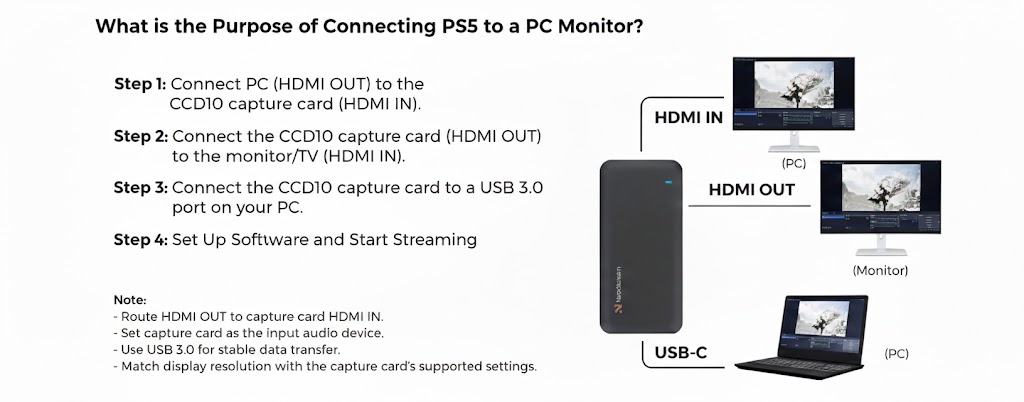
Connecting your PS5 to a PC monitor offers several benefits compared to using a TV. Whether you are limited by space or prefer a more focused, responsive gaming experience, a PC monitor provides distinct advantages.
- Space Efficiency: Monitors are typically smaller and more compact, which is ideal for smaller rooms or tight spaces.
- Better Refresh Rates: Many PC monitors offer higher refresh rates, such as 144Hz or 240Hz, which results in smoother gameplay, particularly in fast-paced games.
- Sharp Resolution: Monitors, especially 1080p or 4K models, often provide a sharper image compared to TVs, which can enhance visual clarity and gameplay detail.
- Affordability: PC monitors tend to be more budget-friendly than large televisions, especially if you’re looking for features like higher refresh rates and low response times.
Now that you understand the potential benefits, let’s explore how to actually set up your PS5 with a PC monitor.
How to Connect PS5 to a PC Monitor
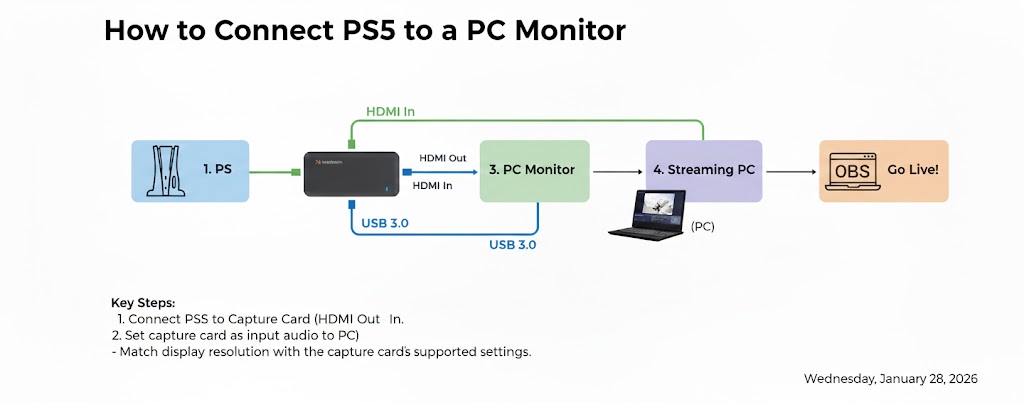
The process of connecting your PS5 to a PC monitor can be done quickly if you have the right equipment. The following steps will help you make the connection seamlessly.
Step 1: Check the Ports on Your Monitor and PS5
First, make sure both the PS5 and the monitor have compatible ports. The PS5 uses an HDMI 2.1 output for video and audio, so your monitor must have an HDMI input. Most modern monitors have HDMI ports, but if your monitor only supports VGA or DisplayPort, you’ll need an HDMI to DisplayPort adapter or an HDMI to VGA converter.
Step 2: Connect the PS5 to the Monitor Using HDMI
Once you confirm compatibility, take the HDMI cable that comes with the PS5 and plug one end into the HDMI port on the console. Connect the other end into the HDMI input on your monitor.
Step 3: Power On Both Devices
Turn on both your PS5 and the monitor. The PS5 should automatically detect the monitor as the display output.
Step 4: Adjust Display Settings on PS5
Once connected, you may need to adjust the display settings for optimal performance:
- Go to Settings on your PS5.
- Navigate to Screen and Video.
- Adjust the Video Output settings to match the monitor’s resolution. For instance, if your monitor supports 4K, make sure the PS5 is set to 4K resolution.
- Enable 120Hz refresh rate if your monitor supports it for smoother gameplay.
Step 5: Set Up Audio Output
PC monitors typically don’t have built-in speakers. Therefore, you need to find a solution for audio:
- External Speakers: If your monitor has an audio output jack, you can connect external speakers directly.
- Bluetooth Headset: You can connect a Bluetooth headset to the PS5 for audio.
- HDMI Audio Extractor: For monitors without an audio output, use an HDMI audio extractor to split the audio signal from the HDMI cable and send it to external speakers.
Step 6: Test the Setup
Once everything is connected, navigate through the PS5 menus and launch a game to test both video and audio. Adjust the monitor’s brightness, contrast, or audio output as necessary.
How It Works: The Technology Behind Connecting PS5 to a PC Monitor
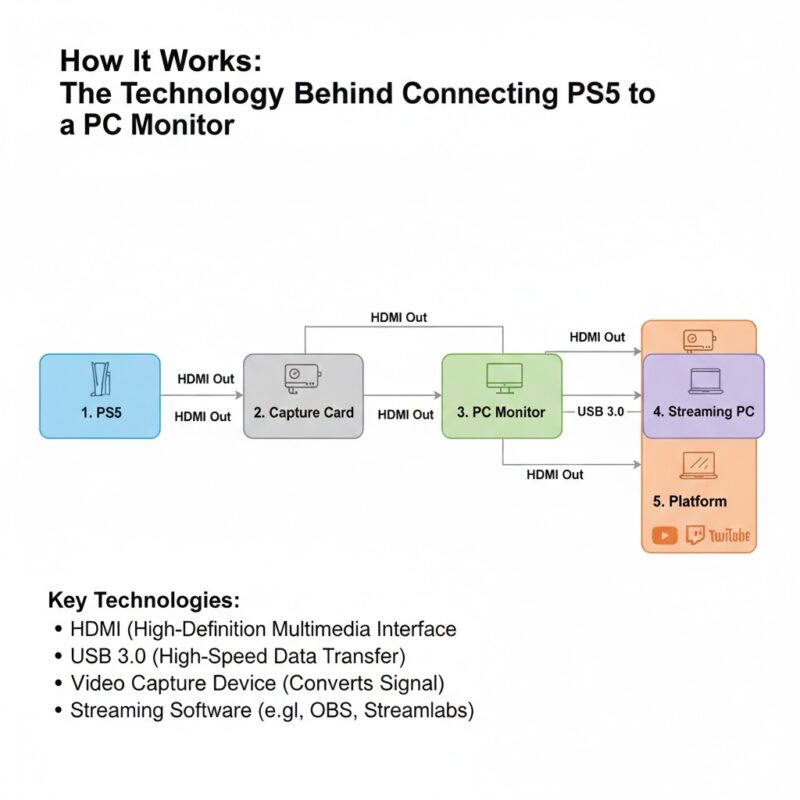
The process of connecting the PS5 to a PC monitor relies on two core components: the HDMI connection and the video settings on the PS5.
HDMI Connection
- HDMI (High-Definition Multimedia Interface) is a standard for transmitting both video and audio signals from the PS5 to the monitor.
- HDMI 2.1 is the latest version that supports higher bandwidth, which is necessary for 4K gaming at 120Hz.
Video Settings on PS5
The PS5 can output different resolutions, from 1080p to 4K. To get the best quality on your monitor, you need to make sure the PS5’s video output settings are configured correctly to match your monitor’s specifications. The refresh rate also plays a crucial role in how smooth your gameplay looks, especially in fast-paced games
Choosing the Right PC Monitor for PS5
When choosing a PC monitor for PS5, there are several important factors to consider to ensure you get the best experience. Here’s a breakdown of the features to look for:
Resolution
- 1080p: Great for budget-friendly setups and casual gamers.
- 1440p: Offers a good balance between performance and image quality.
- 4K: Ideal for high-definition gaming, especially with PS5’s capabilities.
Refresh Rate
- For smooth gameplay, choose a monitor with a 120Hz or higher refresh rate if possible. This is especially important for fast-paced games like first-person shooters and racing games.
HDMI 2.1 Support
- If you want to enjoy 4K at 120Hz gaming, make sure the monitor supports HDMI 2.1. This allows the PS5 to run games at higher resolutions and refresh rates.
Response Time
- A lower response time (1ms to 5ms) reduces motion blur and ghosting, improving your gaming visuals. Look for monitors with a fast response time, especially for competitive gaming.
Popular Monitors for PS5
Here are some great monitors to consider for your PS5 gaming setup:
| Monitor | Resolution | Refresh Rate | Key Features |
|---|---|---|---|
| LG 27GN950-B | 4K | 144Hz | HDMI 2.1 support, 1ms response time, G-SYNC compatible |
| Samsung Odyssey G7 | 1440p | 240Hz | Curved, 1ms response, G-SYNC & FreeSync support |
| Acer Predator XB273K | 4K | 144Hz | HDMI 2.1, fast response, color accuracy |
| BenQ EX3203R | 1440p | 165Hz | Curved, FreeSync, great for fast-action games |
| Gigabyte M32U | 4K | 144Hz | HDMI 2.1, high contrast, great for competitive play |
Troubleshooting Common Issues
Although the connection process is straightforward, you may encounter some issues. Here are common problems and solutions:
No Signal or Black Screen
- Ensure that the HDMI cable is properly connected.
- Check that the correct input source is selected on the monitor.
- Try using a different HDMI port or cable.
No Audio
- If your monitor doesn’t have built-in speakers, use external speakers or a Bluetooth headset.
- Double-check the audio output settings on the PS5 to ensure it’s set to HDMI or your preferred output.
Resolution or Picture Issues
- Ensure that the video output settings on the PS5 match your monitor’s resolution (e.g., 1080p or 4K).
- If the picture looks blurry, check the monitor’s sharpness and adjust it for optimal clarity.
If you have a high-end gaming monitor sitting on your desk, you are probably wondering why you would ever want to play your PlayStation 5 on a living room TV. Monitors often offer better response times, sharper pixel density, and a more immersive “battle station” feel.1
The good news is that the how to connect PS5 to PC monitor process is incredibly simple. However, there are a few “hidden” settings and hardware quirks—especially regarding sound and refresh rates—that can make or break your experience. This guide will walk you through the easy setup and help you troubleshoot the common hurdles.
The Basic Connection: HDMI is Your Friend
The PS5 is designed to work out of the box with almost any modern monitor using an HDMI cable. Since the PS5 comes with a high-quality HDMI 2.1 cable, you should use that first.2
Step-by-Step Easy Setup
- Plug in the PS5: Insert one end of your HDMI 2.1 cable into the back of your console.
- Connect to Monitor: Plug the other end into the HDMI port on your monitor.
- Select the Source: Turn on both devices. Use the buttons on your monitor (the OSD menu) to select the correct HDMI input (e.g., HDMI 1 or HDMI 2).
- Wait for the Logo: You should see the PlayStation logo appear. If the screen is black, double-check that the cable is pushed in all the way.
Dealing with the “No Sound” Problem
One of the biggest surprises for people learning how to connect PS5 to PC monitor – easy setup guides is the sudden silence. Many gaming monitors do not have built-in speakers.3 If your monitor doesn’t make noise, don’t panic. You have three great options:
- The Controller Jack: The easiest fix is to plug any standard pair of headphones into the 3.5mm jack at the bottom of your DualSense controller.4
- USB Speakers/Headsets: You can plug most USB gaming headsets directly into the front or back USB ports of the PS5.
- Audio Extractors: If you have high-end desktop speakers, you might need an “HDMI Audio Extractor.” This little box sits between your PS5 and monitor, splitting the sound out to your speakers while sending the video to your screen.5
Mastering Your Settings for 120Hz and 4K
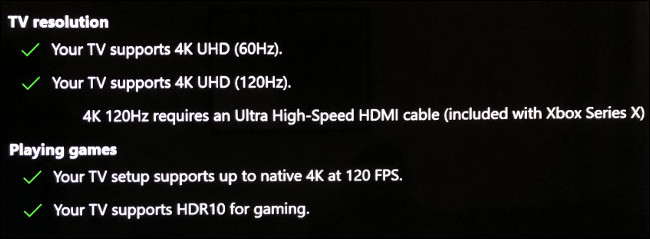
Just because you are connected doesn’t mean you are getting the best picture. To truly maximize the how to connect PS5 to PC monitor experience, you need to dive into the settings menu.
Optimization Checklist
| Setting | Where to Find It | Recommended Value |
| Resolution | Settings > Screen and Video > Video Output | Set to “Automatic” or “1440p” / “2160p” |
| 120Hz Output | Settings > Screen and Video > Video Output | Set to “Automatic” |
| HDR | Settings > Screen and Video > Video Output | Set to “On When Supported” |
| Performance Mode | Settings > Saved Data / Game Presets | Select “Performance Mode” |
Expert Tip: If your monitor supports 1440p but the PS5 is stuck at 1080p, go to the “Video Output” menu and select “Test 1440p Output.” Sony added native 1440p support recently, and it looks incredible on 27-inch monitors.
What if it Doesn’t Work?
If you followed the how to connect PS5 to PC monitor – easy setup guides and still have issues, check these common fixes:
- The Black Screen (HDCP): Sometimes a monitor won’t show a picture because of “HDCP” (copy protection). If you can’t see anything, try booting your PS5 in Safe Mode (hold the power button for 7 seconds) and change the HDCP setting to 1.4.
- HDMI vs. DisplayPort: PS5s do not have a DisplayPort.6 If your monitor only has a DisplayPort free, you will need an active HDMI-to-DisplayPort adapter.7 Be careful: simple “passive” cables usually only work the other way around (PC to HDMI TV).+1
- Flickering: If the screen flashes, your HDMI cable might not be able to handle the bandwidth. Try switching to the original cable that came in the PS5 box.
Personal Experience: Why I Prefer the Monitor Setup
I switched my PS5 from a 55-inch TV to a 27-inch gaming monitor last year, and I haven’t looked back. Being closer to the screen makes it much easier to spot enemies in shooters like Call of Duty or Apex Legends. Plus, most monitors have much lower “input lag,” meaning when you press a button, the action happens instantly.
If you are a competitive gamer, the how to connect PS5 to PC monitor transition is the single best upgrade you can make to your setup.
Advantages of Connecting PS5 to a PC Monitor
There are many reasons why gamers prefer using PC monitors for PS5 gaming. Here are some key advantages:
Faster Response Time and Refresh Rate
Monitors generally have faster response times and higher refresh rates than TVs. A 144Hz or 240Hz refresh rate provides smooth gameplay, especially beneficial in competitive gaming genres such as first-person shooters (FPS) or racing games. With low latency and 1ms response time, your actions will be reflected on screen almost instantly, giving you an edge in gameplay.
Better Picture Quality
PC monitors often have better pixel density and sharper resolution than large TVs. A 1080p or 4K monitor will give you clearer visuals, which is particularly noticeable when playing high-definition games on the PS5.
More Compact and Space-Efficient
Monitors take up less space compared to large televisions, making them a great choice for small apartments or gaming setups with limited space.
Affordable Option
PC monitors, especially those focused on gaming, are often more affordable than large-screen TVs that offer the same level of resolution and refresh rate.
FAQs About Connecting PS5 to a PC Monitor
Can I connect my PS5 to a PC monitor?
Yes, as long as the monitor has an HDMI input, you can connect the PS5 directly to it.
Will the PS5 work with a 1080p monitor?
Yes, the PS5 will work with a 1080p monitor, but it won’t display 4K content. It will still provide a great experience.
How do I enable 120Hz on the PS5?
Go to Settings > Screen and Video > Video Output and select 120Hz under the Refresh Rate section.
Why is there no audio when using a monitor?
Most monitors don’t have built-in speakers. You may need external speakers or a Bluetooth headset.
Can I use a curved monitor with the PS5?
Yes, curved monitors work well with the PS5 and offer an immersive gaming experience.
What HDMI cable should I use for the PS5?
Use an HDMI 2.1 cable for the best 4K and 120Hz performance, especially for fast gaming.
Can I use multiple monitors with the PS5?
The PS5 only supports one display at a time, but you can manually switch between monitors.
How do I change the resolution on the PS5?
Go to Settings > Screen and Video > Video Output, then select the appropriate resolution for your monitor.
What if my monitor only has VGA or DisplayPort?
You can use an HDMI to DisplayPort or HDMI to VGA adapter, but it may limit the quality or resolution.
Can I play PS5 on a 1440p monitor?
Yes, 1440p monitors are compatible with the PS5, and you can adjust the settings for optimal gameplay.
Is a 4K monitor necessary for PS5?
While a 4K monitor is ideal, a 1080p or 1440p monitor can still provide a good gaming experience.
How do I fix a black screen after connecting my PS5?
Check the HDMI cable and ports, ensure the monitor is set to the correct input, and verify the PS5’s resolution settings.
Do I need to adjust the PS5 settings for a 120Hz monitor?
Yes, ensure that the Refresh Rate in Video Output Settings is set to 120Hz for monitors that support it.
Why is the display blurry on my monitor?
Check the PS5’s video output settings to ensure they match your monitor’s resolution, and adjust the monitor’s sharpness settings.
Can I use a gaming monitor for PS5?
Yes, gaming monitors with HDMI 2.1, high refresh rates, and low response times are great for PS5 gaming.